

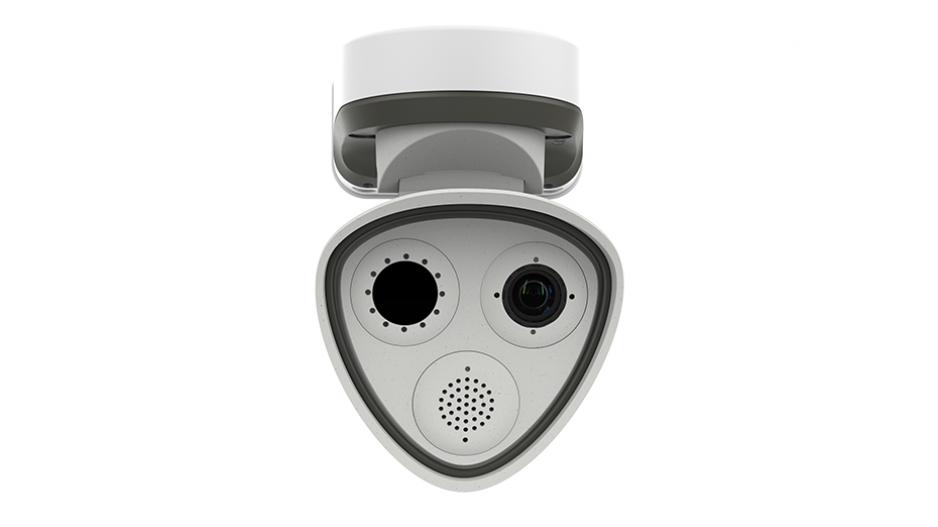
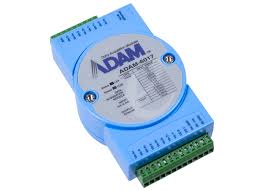
There are several Ethernet IO Modules that have been tested with Mobotix Cameras. One such is the Advantech Adam 6060 with 6 digital inputs and 6 Relay outputs. This describes the setup of the Adam Module and the integration with a Mobotix IOT camera such as an M73.
Configure the Adam Module
- First you will need to connect the Adam Module to Power (10 - 30 volts DC) and to the network.

- Download and start the Advantech I/O Module Utility on PC

- Right click the PC IP address under Ethernet and click Search Device
- Click on the Adam Module under Ethernet and go to Network tab. Initially the module will have an IP of 10.0.0.1. Set static IP, subnet, and gateway or DHCP. Click Apply. DHCP address will be displayed.

- Go to Administration tab and update password. Default password is 00000000 (8 x zero)

- Click on the 6060 icon under Ethernet to see the input and output statuses.

- Expand this section to see the individual I/O setting. For example click on DO_00. You can open and close the relays hear for testing purposes or see the current status of the output.
Configure the Mobotix Camera
Won’t go into a lot of detail here except for the IP Notify configuration needed to switch the relays. As always make sure that the General Arming is enabled and any events are configured.
In these examples only the first relay is used but there are 6 available DO0-DO5
The IP notifies are configured like this:
Close Relay
Network Message Type: HTTP/HTTPS
Destination address: <IP-Address Adam 6060>: (normally port 80)
HTTP Method: POST
CGI path: /digitaloutput/all/value
HTTP Scheme: HTTP/1.1
Authentication Method: Basic Authentication
HTTP authentication: root:00000000 (enter correct password if changed)
Notification data: Text only
Message: DO0=1
Open Relay
Network Message Type: HTTP/HTTPS
Destination address: <IP-Address Adam 6060>: (normally port 80)
HTTP Method: POST
CGI path: /digitaloutput/all/value
HTTP Scheme: HTTP/1.1
Authentication Method: Basic Authentication
HTTP authentication: root:00000000
Notification data: Text only
Message: DO0=0

The IP notifies can then be tested in the Test Current Network Configuration page and matched up with the necessary events in Action Group Overview.